
How to Download Beta Version
Follow the Simple Steps to Get the App on Your Device—Whether You’re Using iOS or Android
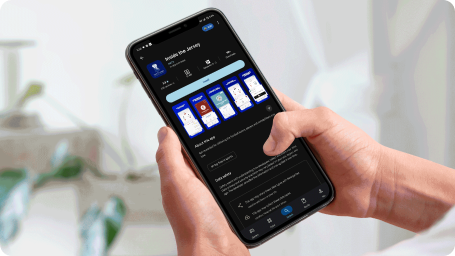
How to Download an iOS App from TestFlight
To install an iOS app using TestFlight, follow these simple steps:
1
Step 1: Download TestFlight from the App Store
If you haven’t already, download
TestFlight from the App Store
on your iPhone or iPad.
2
Step 2: Get the TestFlight Invitation Link
Click the link below to receive your TestFlight invitation:
Download iOS App from TestFlight
Download iOS App from TestFlight
3
Step 3: Open the Link in TestFlight
Once you click the link, it will automatically open in the TestFlight app. If you don’t have TestFlight installed, you’ll be prompted to install it first.
4
Step 4: Install the App
Tap the “Install” button inside TestFlight. The app will start downloading and installing on your iPhone or iPad.
5
Step 5: Open the App
Once installed, you can open it directly from TestFlight or find it on your home screen to start using it right away.
How to Download an Android App from Google Drive
For Android users, the app is hosted on Google Drive. Please follow the instructions below to download and install the app:
1
Step 1: Enable Unknown Sources (If Necessary)
Before downloading the APK, ensure that your device is set to allow installations from unknown sources. To enable this:
Go to Settings > Security (or Apps & notifications > Special app access).
Toggle Allow from this source or Install unknown apps on the app you're using to download (e.g., your browser or file manager).
Go to Settings > Security (or Apps & notifications > Special app access).
Toggle Allow from this source or Install unknown apps on the app you're using to download (e.g., your browser or file manager).
2
Step 2: Get the APK Link
Click the link below to download the APK:
Download Android App
Download Android App
3
Step 3: Download the APK
The link will take you to Google Drive. Tap the “Download” button to begin downloading the APK file.
4
Step 4: Install the APK
Once the download is complete, open the file and tap “Install” when prompted. If this is your first time installing an APK, you might see a warning asking you to allow installation from your file manager app. Confirm and continue.
5
Step 5: Open the App
After installation, you can open the app directly from the installation screen or find it in your app drawer.